Command Line
The command line is where your Arturo journey begins: whether you want to experiment in the REPL, run a script, manage packages, or work with bytecode.
Using the command line
Run a script
To run an Arturo script, simply pass the script's path to Arturo:
arturo <script>
Tip
Script files typically use the.artextension
Evaluate a code string
To evaluate code strings directly, use --evaluate or -e followed by your Arturo code:
arturo --evaluate <string>
Double quotes within a double-quoted string must be escaped with a backslash:
arturo -e "print \"Hello, World!\""
Alternatively, if your code doesn't contain quotes, you can use single quotes to avoid escaping:
arturo -e 'print "Hello, World!"'
Strings can contain multiple statements and/or blocks, separated by commas or spaces, or concatenated when the preceding character is non-alphabetic.
Start the interactive console
To start the interactive console (REPL), simply type:
arturo
Or explicitly use:
arturo --repl
This is what Arturo's interactive console looks like:
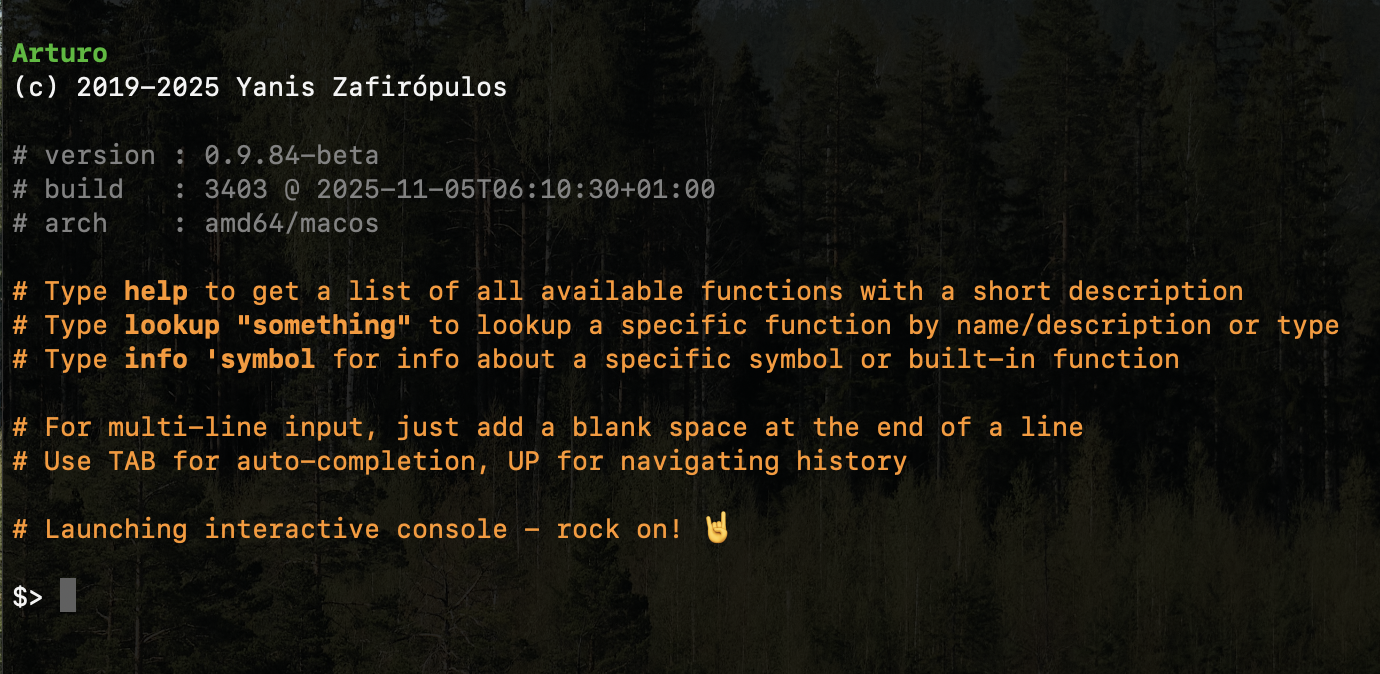
Here you can easily experiment and see results immediately.
Bundle an executable
You can bundle your Arturo script into a standalone executable:
arturo --bundle <script>
To specify a custom name for the executable:
arturo --bundle <script> --as myapp
Caution
This feature is experimental and may change in future versions
Working with bytecode
Since Arturo is internally a bytecode-based VM, you can save and read bytecode directly.
Note
Bytecode is a form of instruction set designed for efficient execution by a software interpreter. Unlike human-readable source code, bytecodes are compact numeric codes, constants, and references that encode the result of compiler parsing and semantic analysis.
This allows you to share your code without exposing the source, or accelerate script execution by skipping the initial parsing phase.
Compile to bytecode:
arturo --compile <script>
This generates a <script>.bcode file alongside your script.
Execute bytecode:
arturo --execute <script>.bcode
Caution
Bytecode compilation and execution are experimental features
Package manager
Although Arturo's philosophy is batteries-included, it also comes with a built-in package manager for additional functionality.
List available packages
To list all locally installed packages:
arturo --package list
List remote packages
To fetch all packages available from the official repository:
arturo --package remote
Install a new package
To install a package:
arturo --package install grafito
Tip
If you useimport 'grafito!in the REPL or a script and the package isn't installed, Arturo will automatically install it for you
Uninstall a package
To uninstall a previously installed package:
arturo --package uninstall grafito
Update all packages
To update all locally installed packages to their latest versions:
arturo --package update
Display options
Mute output colors
To disable colored output:
arturo --no-color <script>
This is useful when redirecting output to files or when working in environments that don't support ANSI colors.
Version and help
To display the current version:
arturo --version
To show the help screen:
arturo --help